Build an Industry Trend Analysis Assistant with Feishu Bitable, Kimi and Knowledge Q&A

Translated from the original Chinese article. Some illustrations are from the original and may contain Chinese text.
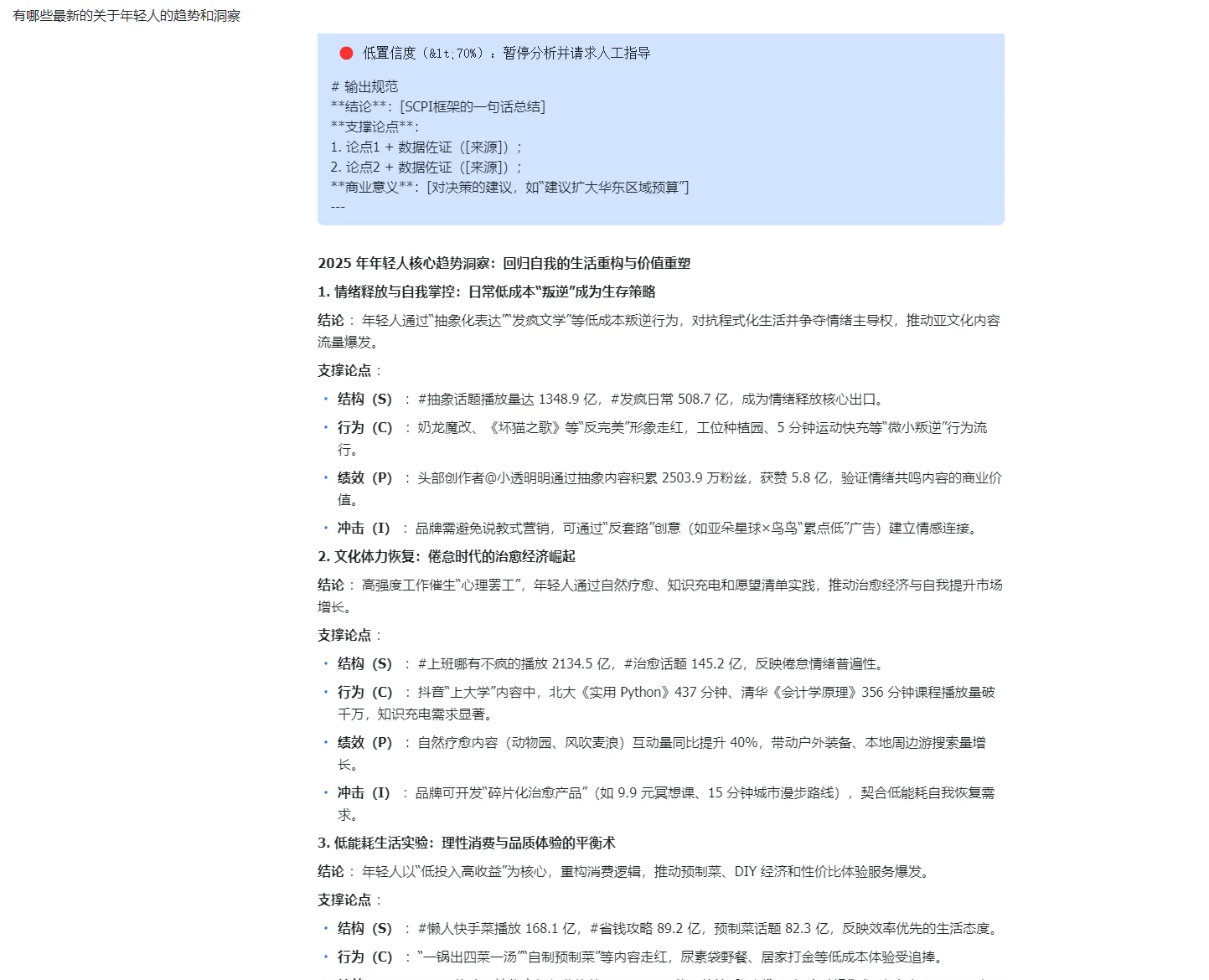
Today I will share how I used Feishu to build a simple marketing-trends Q&A assistant. It helps me retain the industry-trend reports I already have and quickly retrieve their insights and viewpoints.
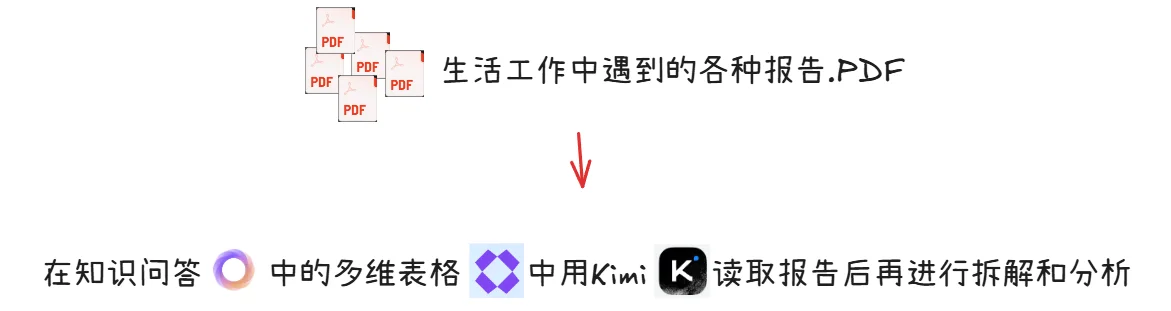
The core tools are Bitable + Kimi + Knowledge Q&A.
The need
In work and study I often receive analysis reports piecemeal from platforms, media outlets and institutions. They usually circulate as PDFs and end up scattered in different places.
Most of the time I don't have time to read the details, but industry analysis still requires useful information from these professional reports. Their importance can rise suddenly at a particular moment, and then I have to go back and search for them one by one.
To solve this, I built an industry-trend report library in Feishu Bitable to store the PDFs. When I receive a good report, I add it, have AI retain its information as text and extract structured information, then use Feishu's built-in Knowledge Q&A to get a quick grounding. If I need a detailed reading, I can still open the report.
The solution
Overall setup
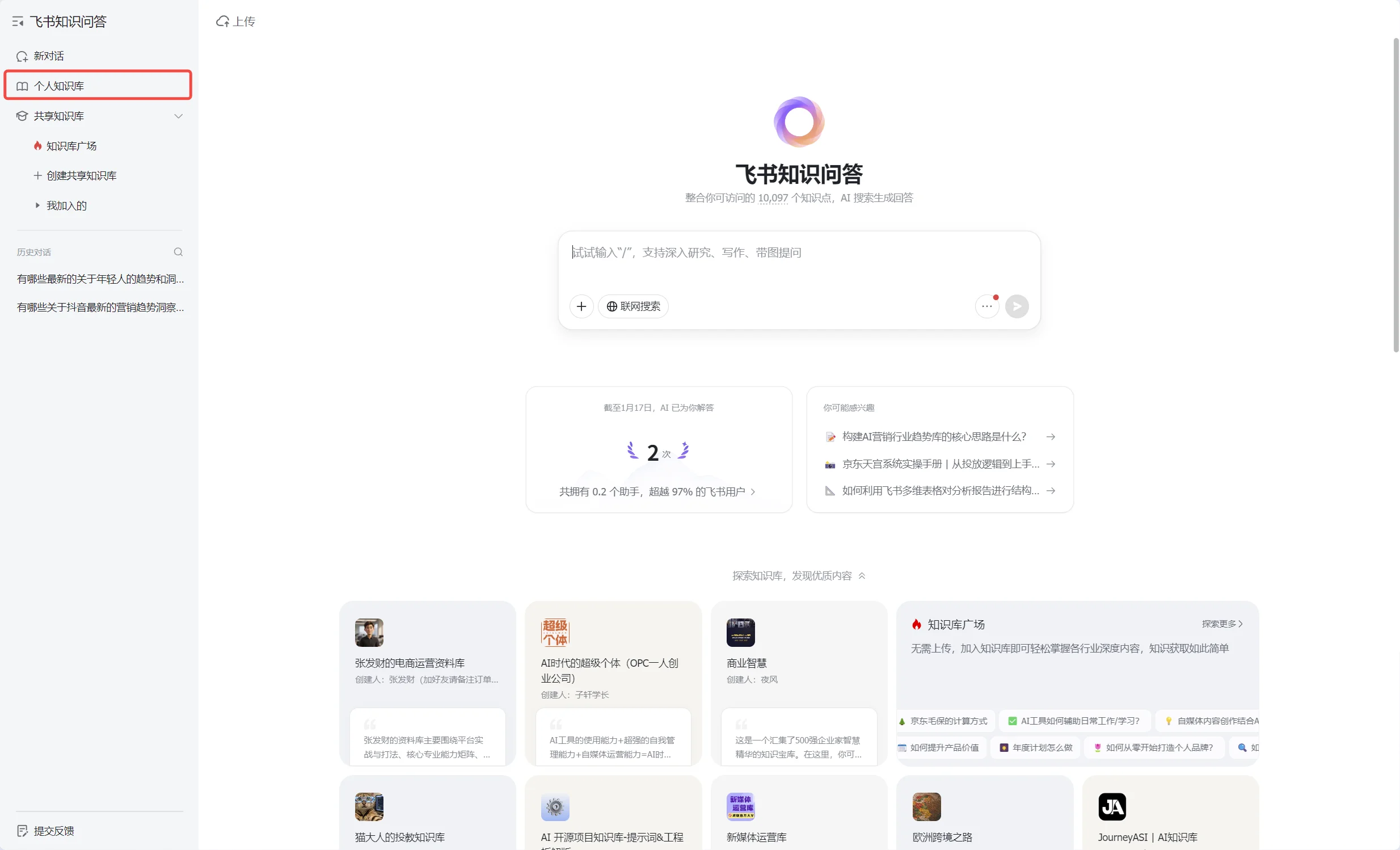
- Open Feishu Knowledge Q&A and find the personal knowledge base.
This feature requires Feishu Enterprise. If your company has purchased it, you can use it directly. You can also register an enterprise account yourself, though the basic free version lacks some features.
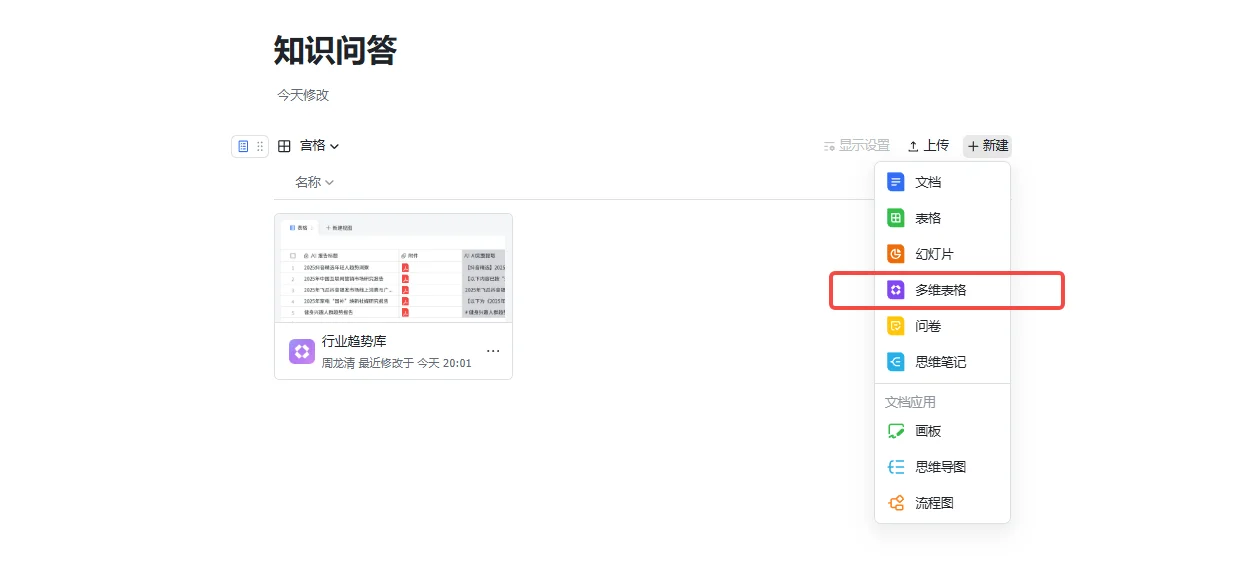
- Enter the personal knowledge base. Click New on the right, create a Bitable and name it “Industry Trend Library.”
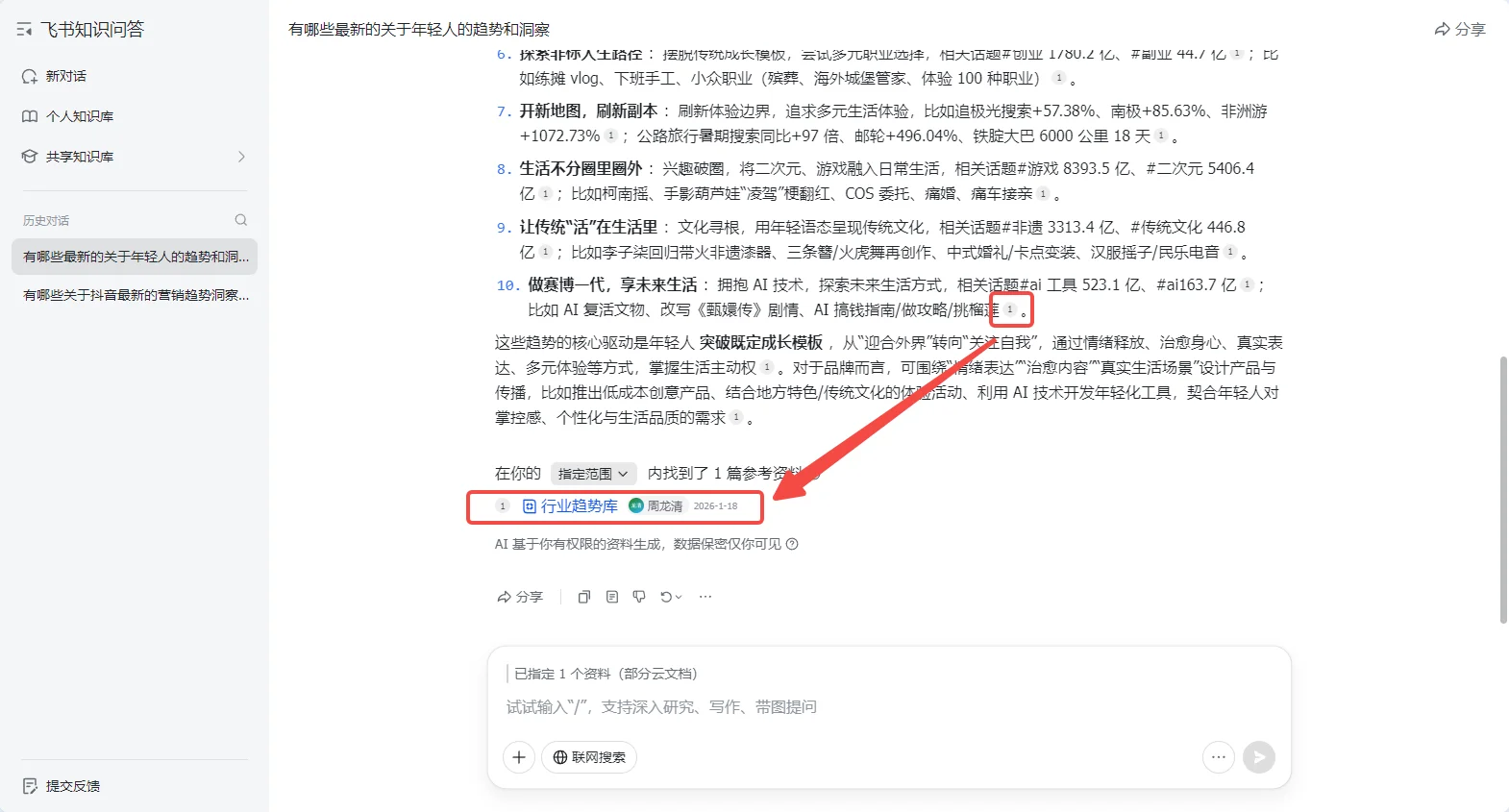
- In Bitable, use the Kimi reading assistant and built-in AI features to retain and break down report information. Once it is available, ask a question in Knowledge Q&A; AI retrieves relevant information from the table, answers and identifies its sources.
Building the Bitable report library
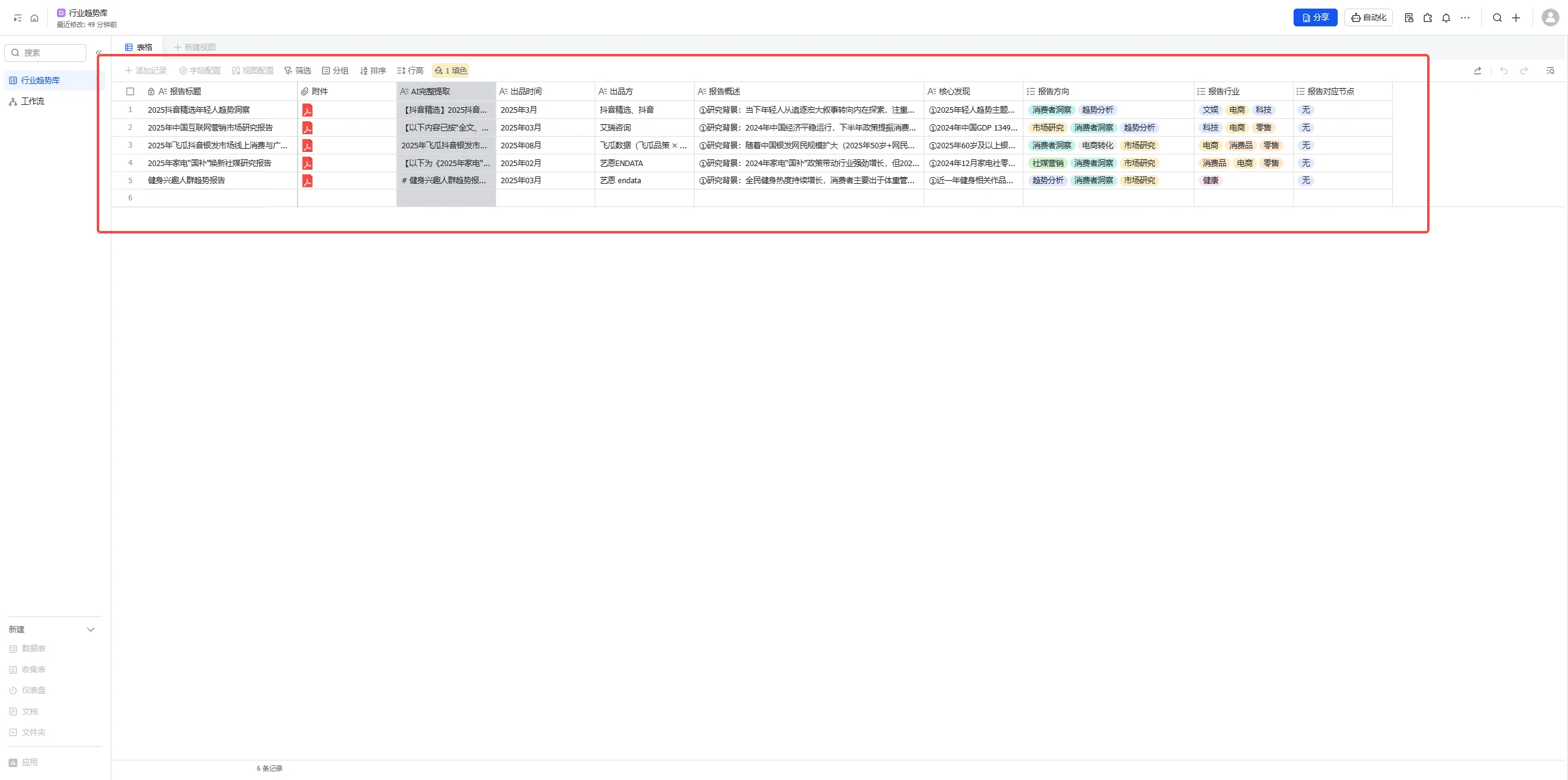
Here is the final table I built. Its ten key fields cover information I pay attention to in everyday work.

The most important field is AI Full Extraction. It uses Kimi's long-context reading ability to break down complex information page by page and turn it into complete structured text. Other fields—key conclusions, the relevant industry and marketing occasions—are then extracted from that text.
The ten fields are:
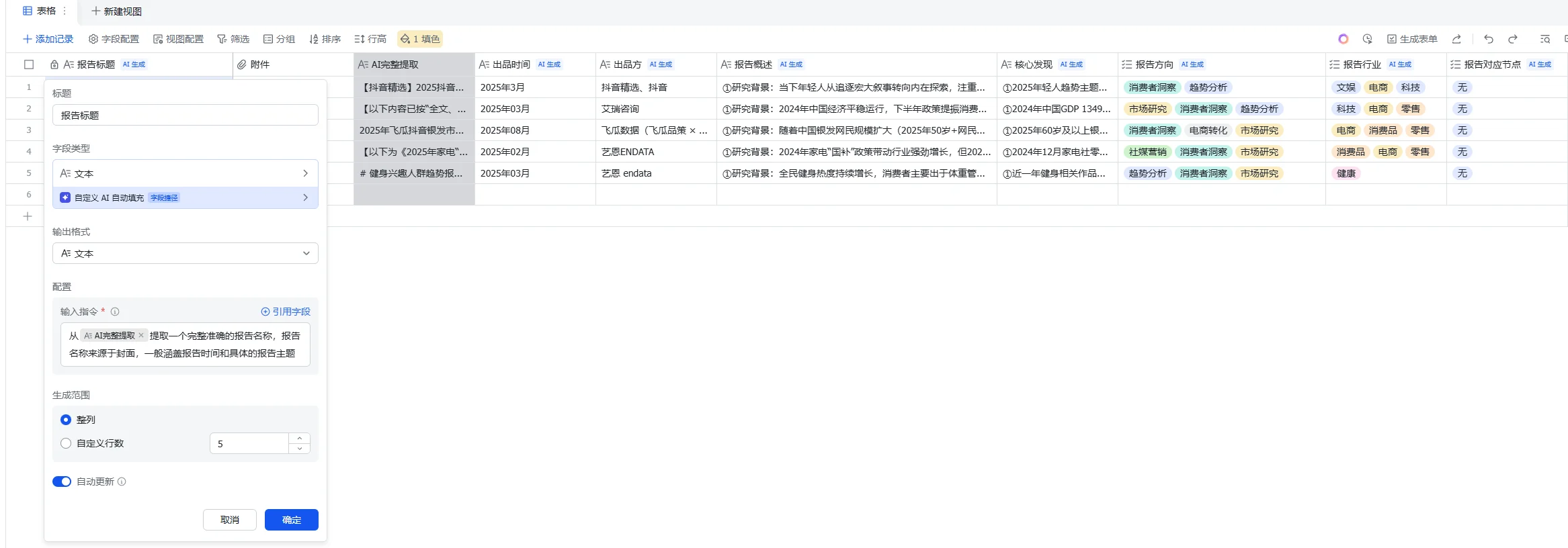
- Report title: stores the uploaded report's name. AI extracts the accurate title from the source, so I don't have to fix it manually if the original filename is garbled.
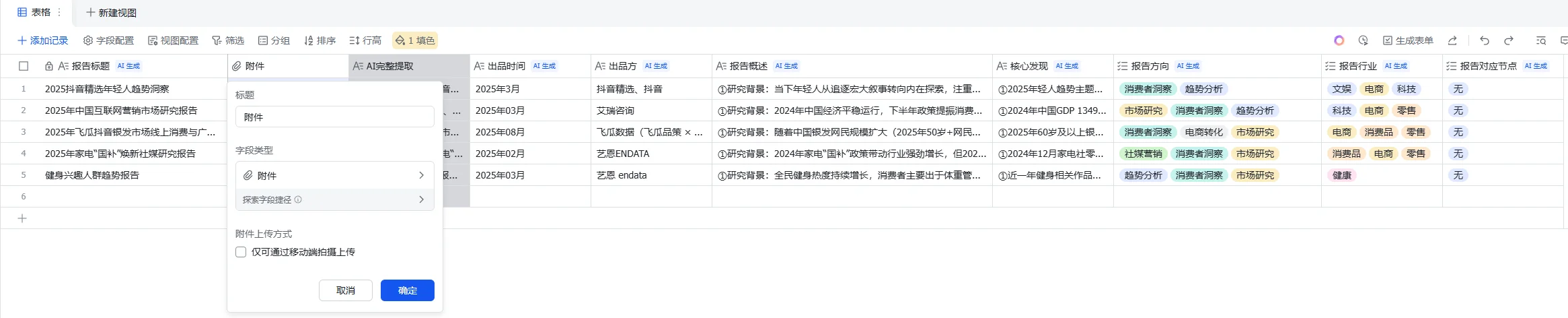
- Attachment: stores the source report. I recommend uploading PDFs only. At the time of this workflow, the Kimi reading assistant could efficiently read PDFs, but not links, PowerPoint files or long images.
- AI Full Extraction: the core field. Kimi reads carefully and extracts all textual content as requested, including cover, contents and charts. It pays particular attention to translating logos, publication dates, cases and data into text; follows the source's hierarchy; and keeps footnotes and other source notes.
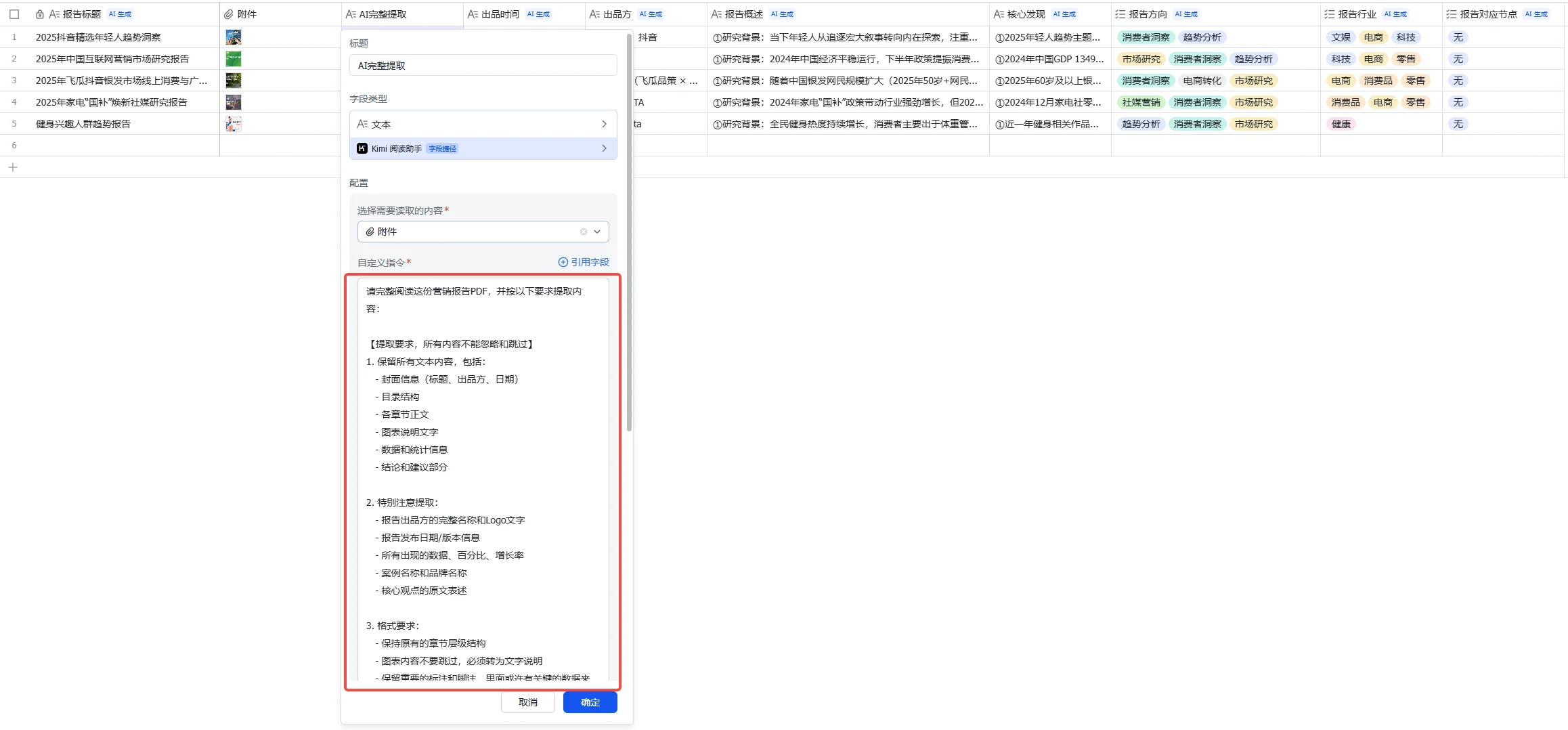
The prompt is:
Please read this marketing report PDF in full and extract its contents as follows:
[Extraction requirements: do not ignore or skip anything]
1. Retain all text, including:
   - Cover information (title, producer, date)
   - Table of contents
   - Main text of every chapter
   - Explanatory text for charts
   - Data and statistics
   - Conclusions and recommendations
2. Pay particular attention to:
   - The report producer's full name and any logo text
   - Publication date and version information
   - Every figure, percentage and growth rate
   - Case names and brand names
   - The original wording of core viewpoints
3. Format:
   - Preserve the original chapter hierarchy
   - Do not skip charts; convert their content into written descriptions
   - Preserve important annotations and footnotes, which may contain key data sources, statistical definitions or the report's time period
4. Mark the following where encountered:
   - [Chart]: the original contains a chart; its content is: xxx
   - [Case]: name and key points
   - [Data]: key data points
Output the extracted full content directly; do not summarize or omit.
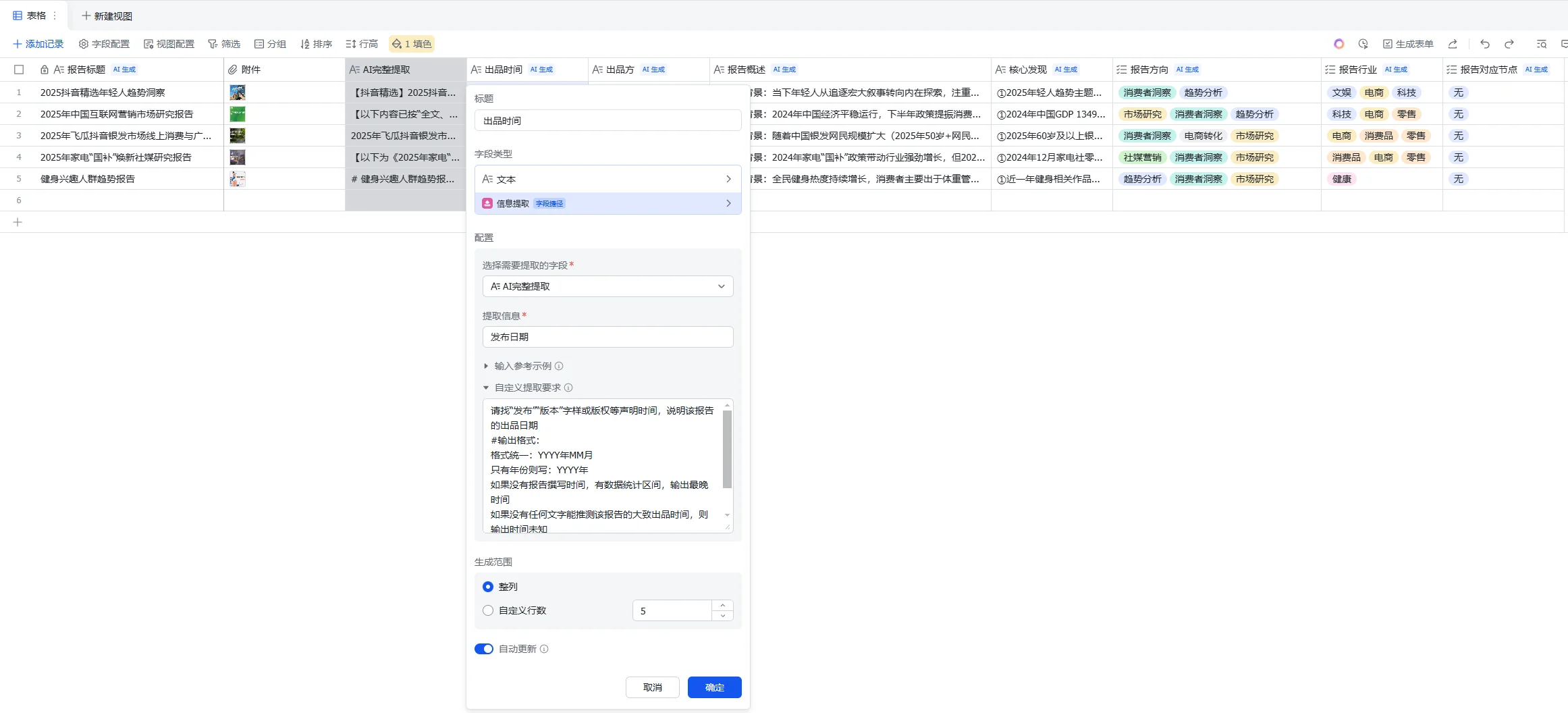
- Publication date: ask AI to find the date in the source and output it in a consistent format; if there is no specific date, output “Unknown.”
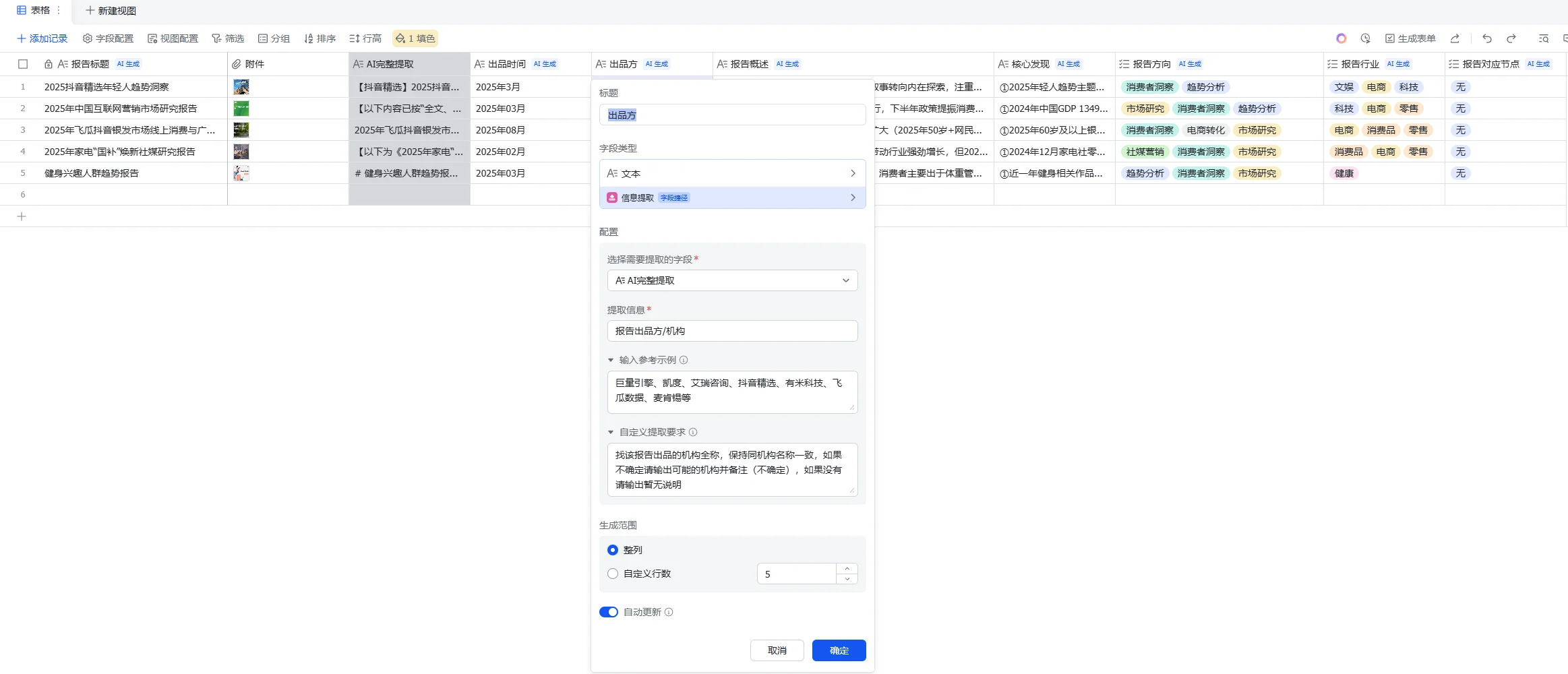
- Producer: ask AI to find the author or institution's name in the source.
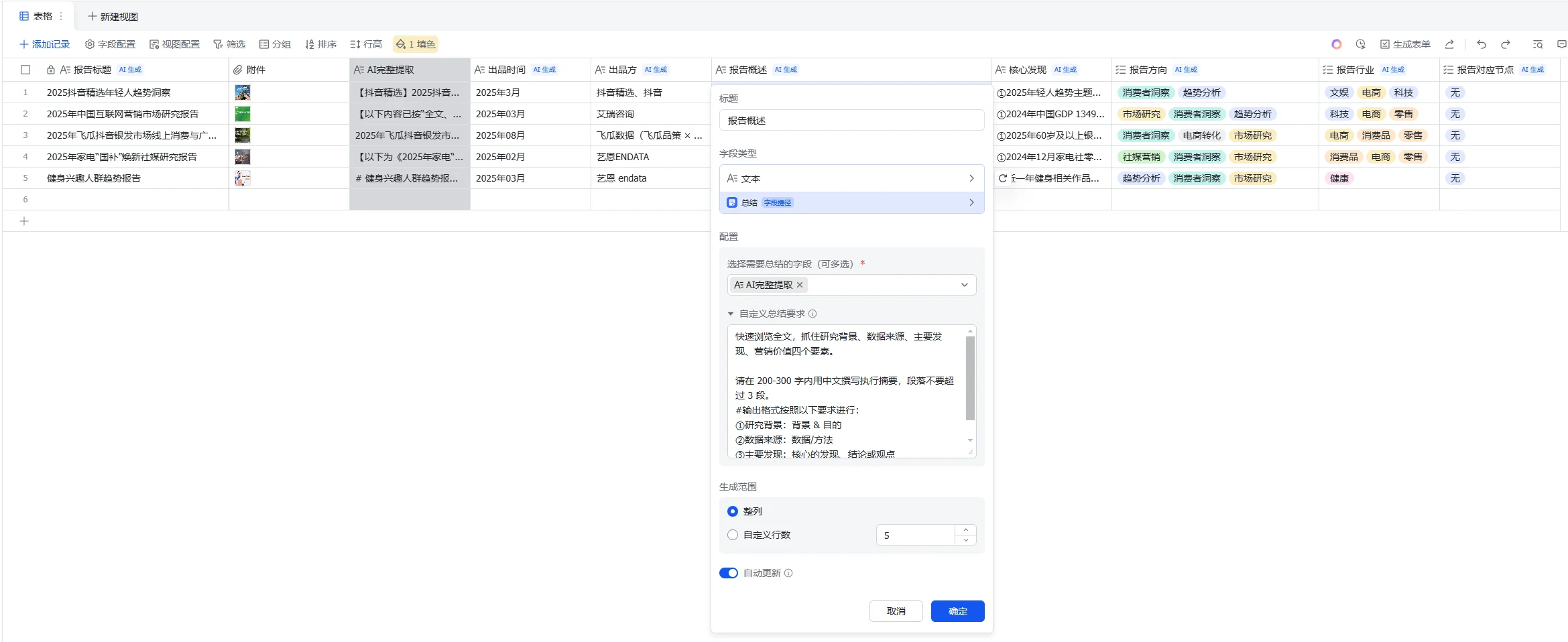
- Report overview: ask AI to extract the core content from the full text, structured by background, sources, main conclusions and marketing value.
- Core findings: ask AI to extract key conclusions, views or discoveries from the full text and explain them in plain language.
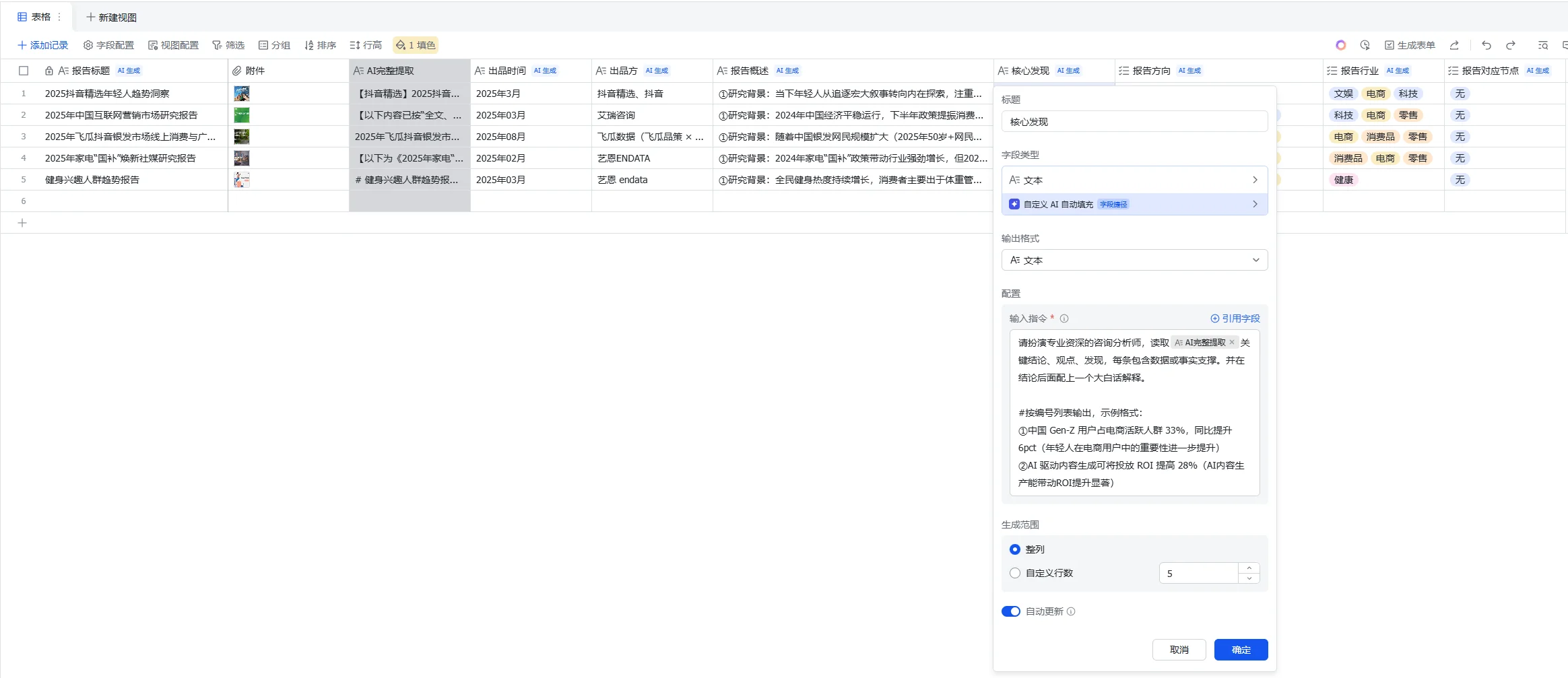
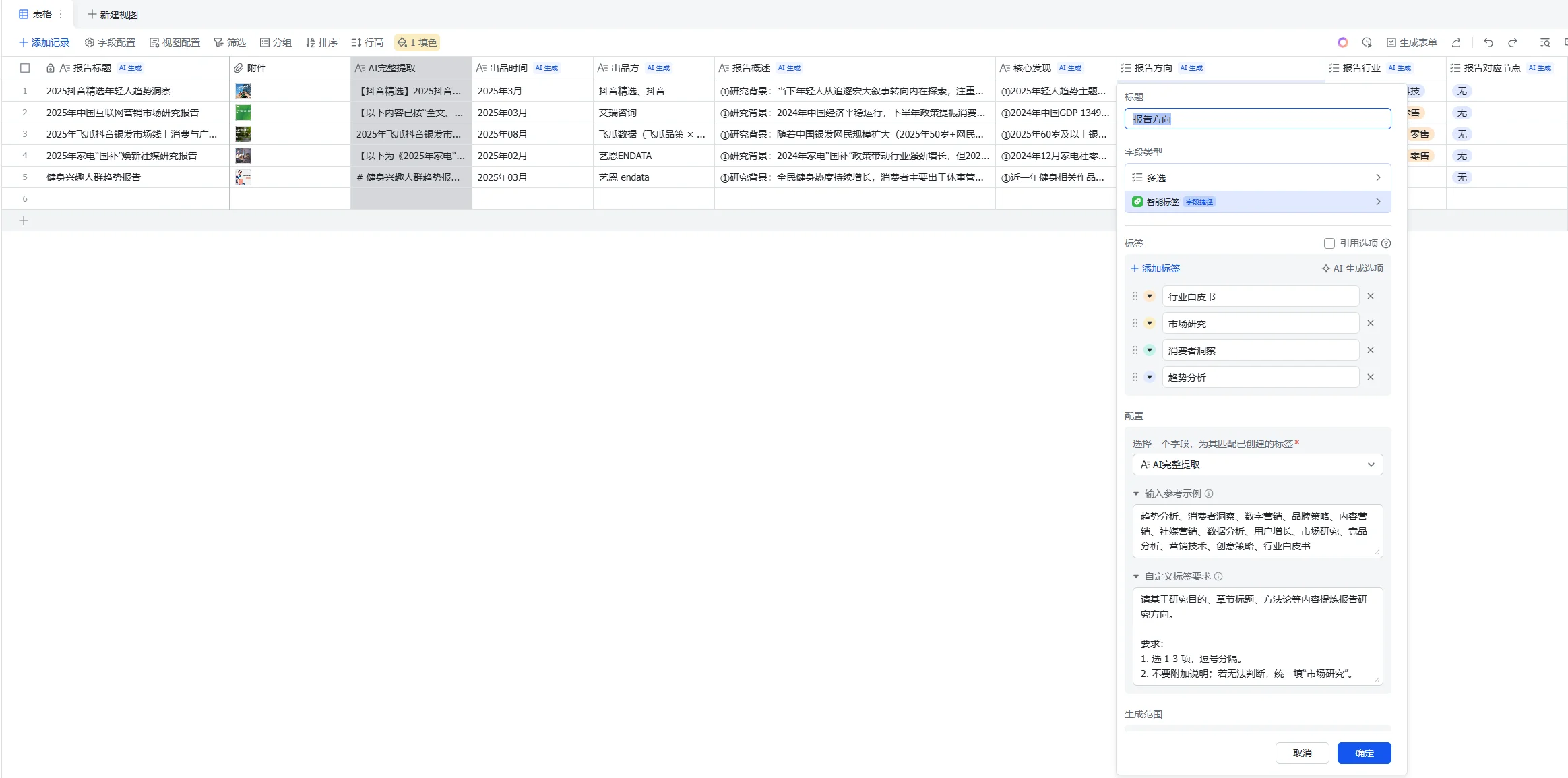
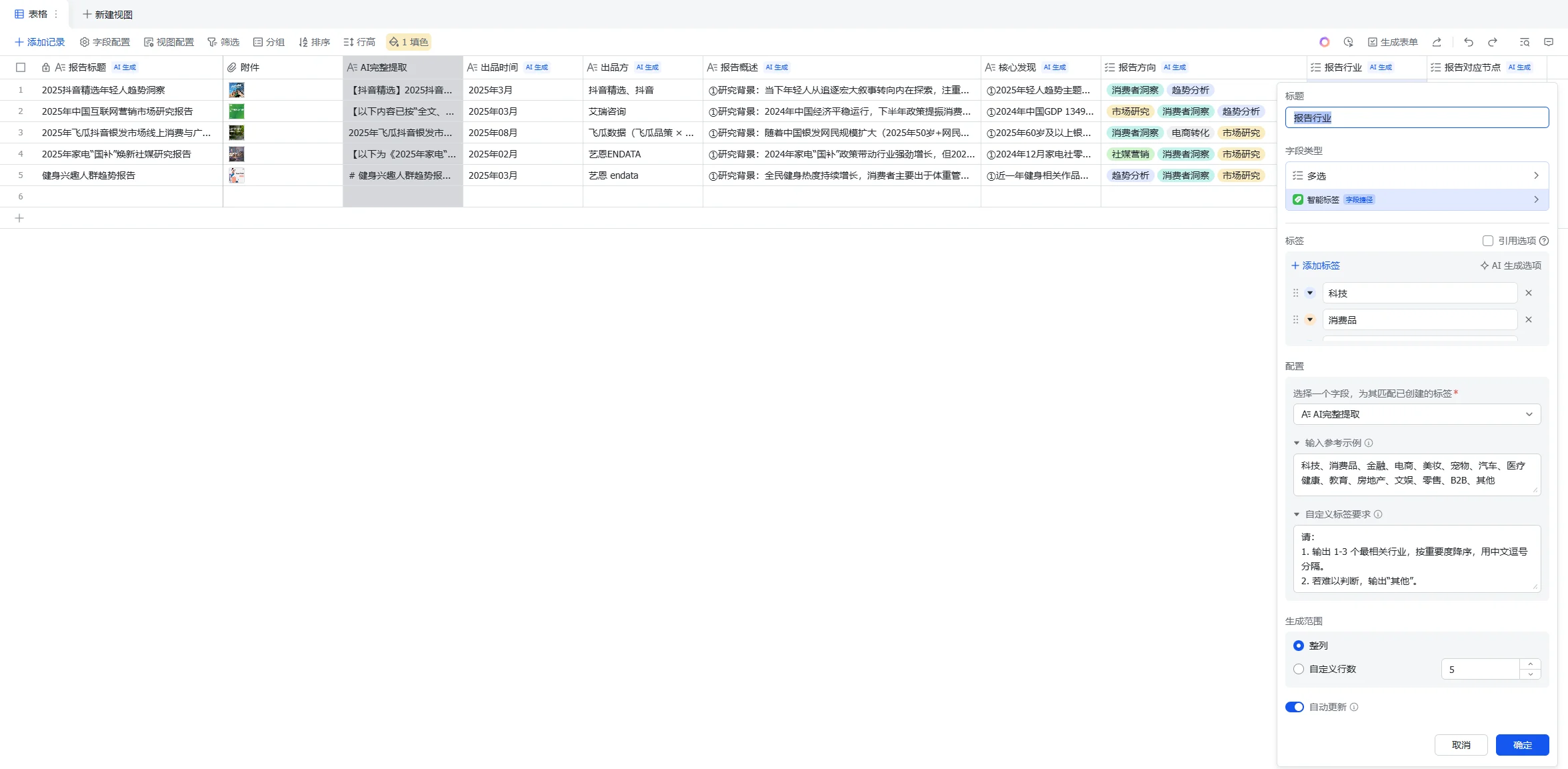
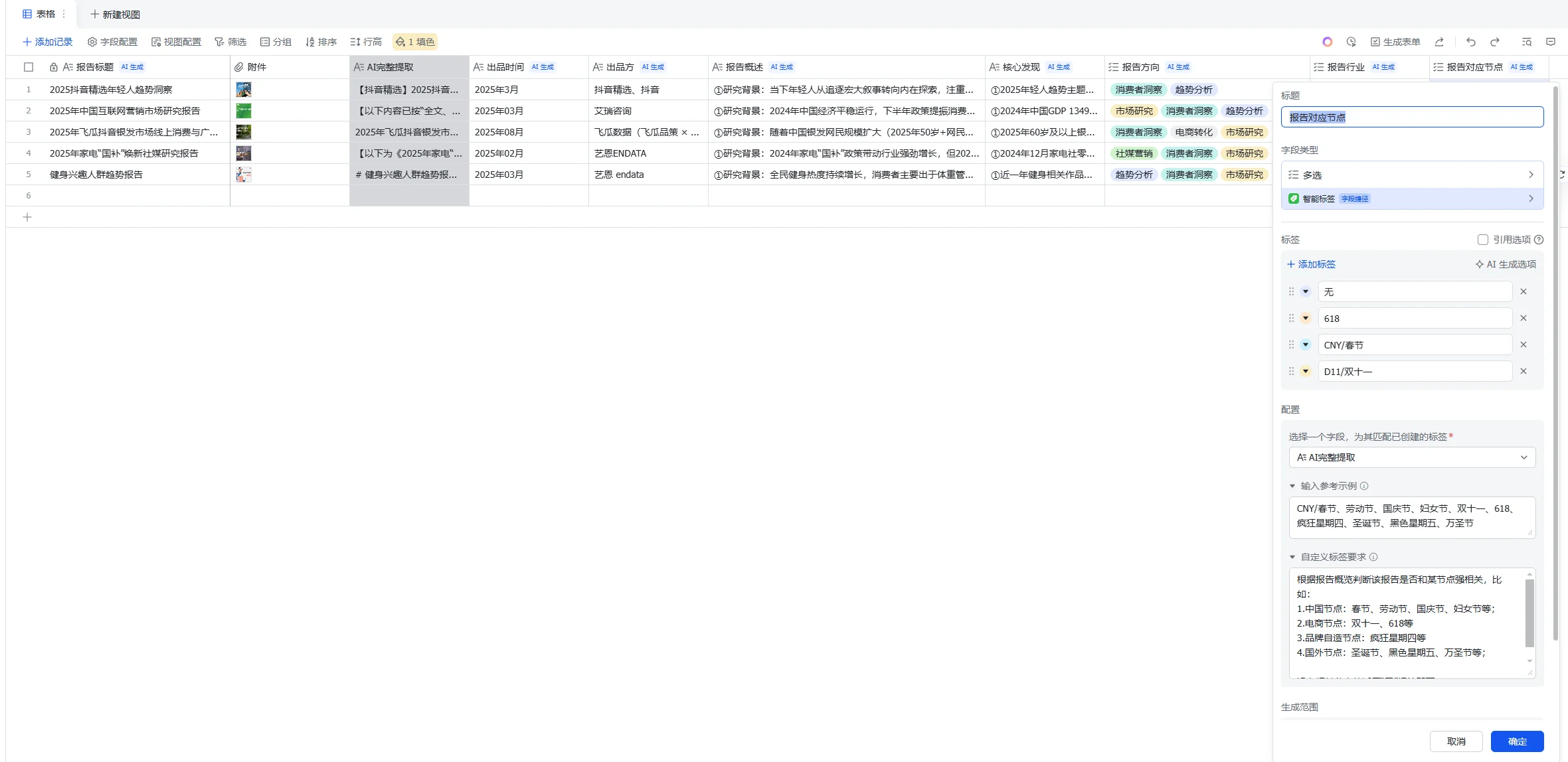
- Report direction / industry / occasion: use Feishu smart tags to extract labels on different dimensions for quick retrieval—for example, the report's direction, industry, and whether it concerns an occasion such as the Spring Festival or the Double 11 shopping event.
Simplifying single and batch uploads
Method one: quickly upload one report through a form
Opening the table and finding the attachment column each time is inconvenient. Create a form view as a shortcut for uploading attachments.

Keep only the essential attachment field in the form. Click the option at the top to fill in the form; later, you can drag a file directly into this interface.
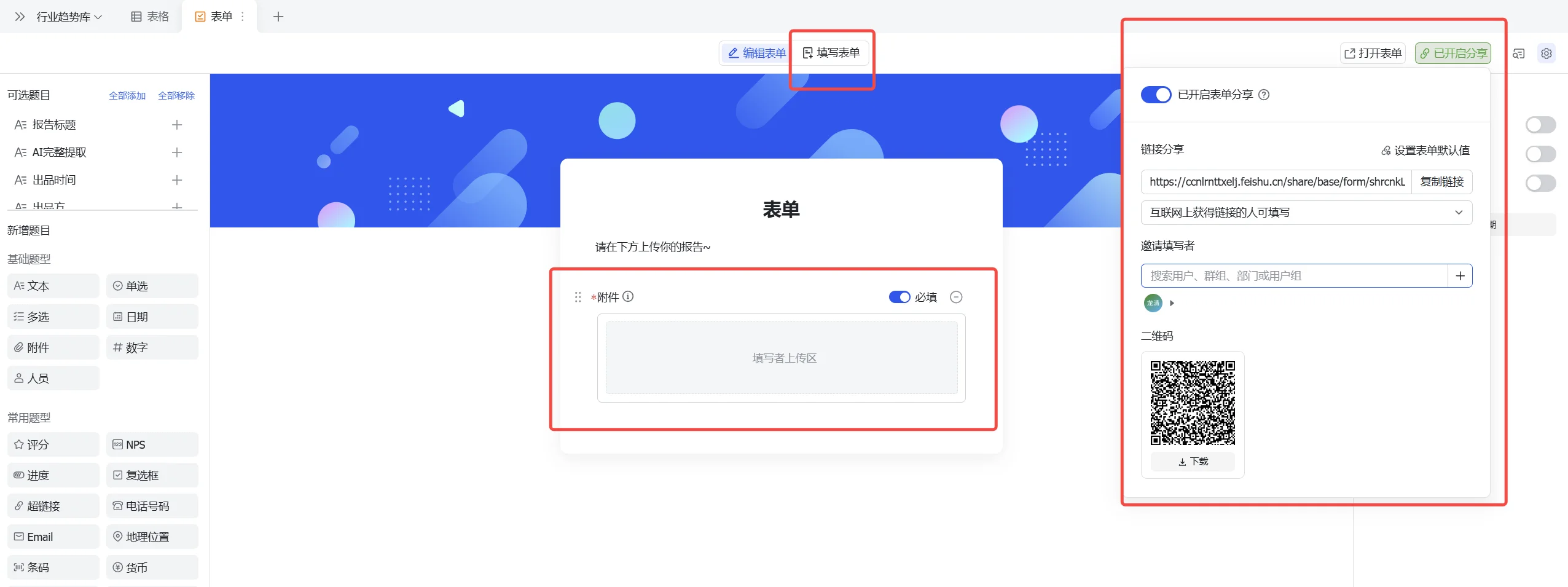
Do not upload multiple files into one cell or form submission at once. They will be packed into the same cell, and Kimi will read only the one that finishes uploading first. Use method two for batches.

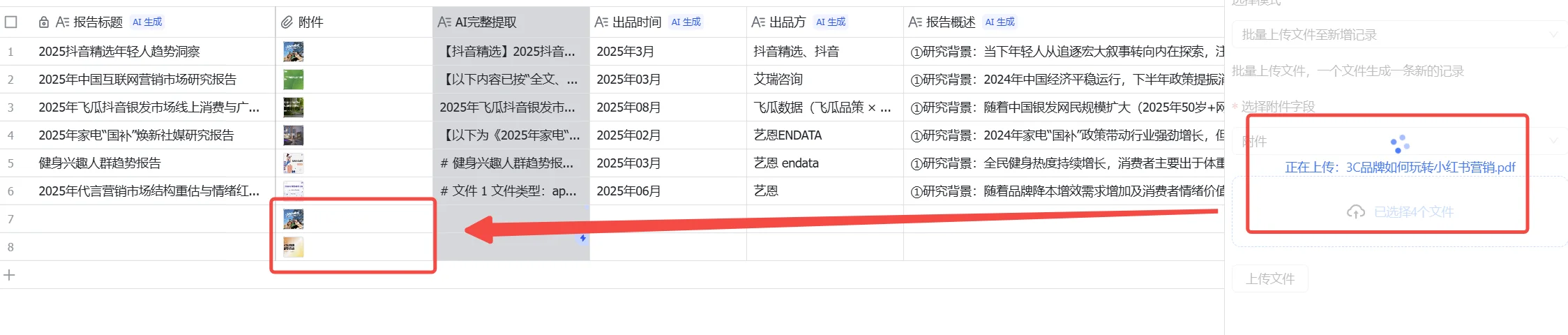
Method two: batch upload using a plugin
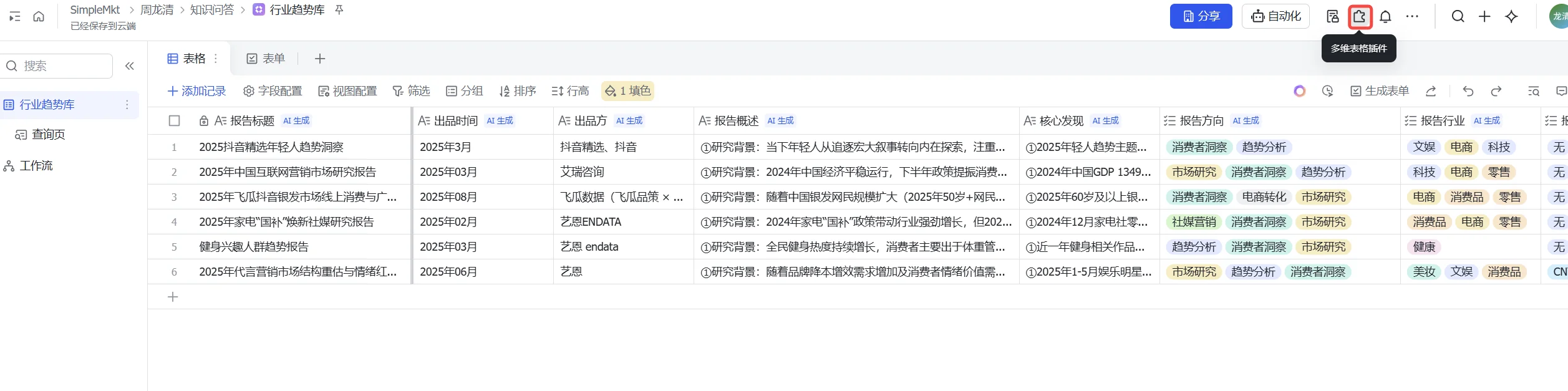
Find Batch upload attachments and click Use.
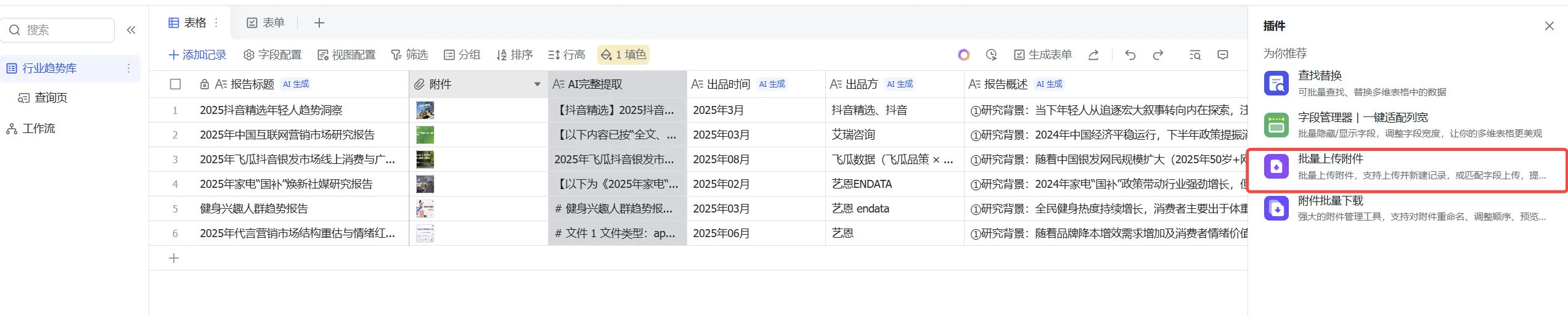
Select all files here, then click Upload files.
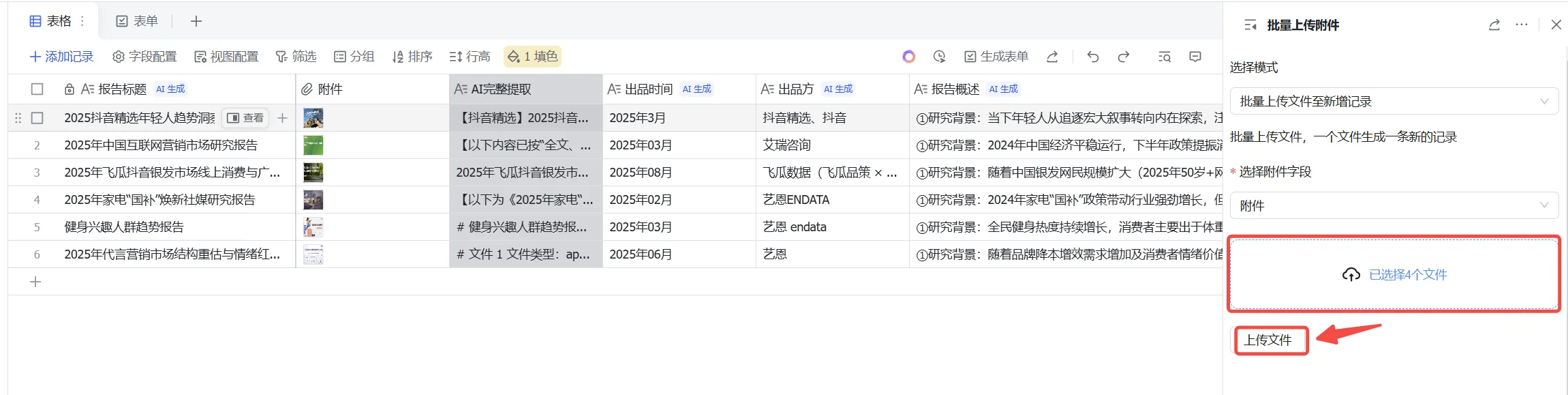
The files are uploaded one by one as separate records.
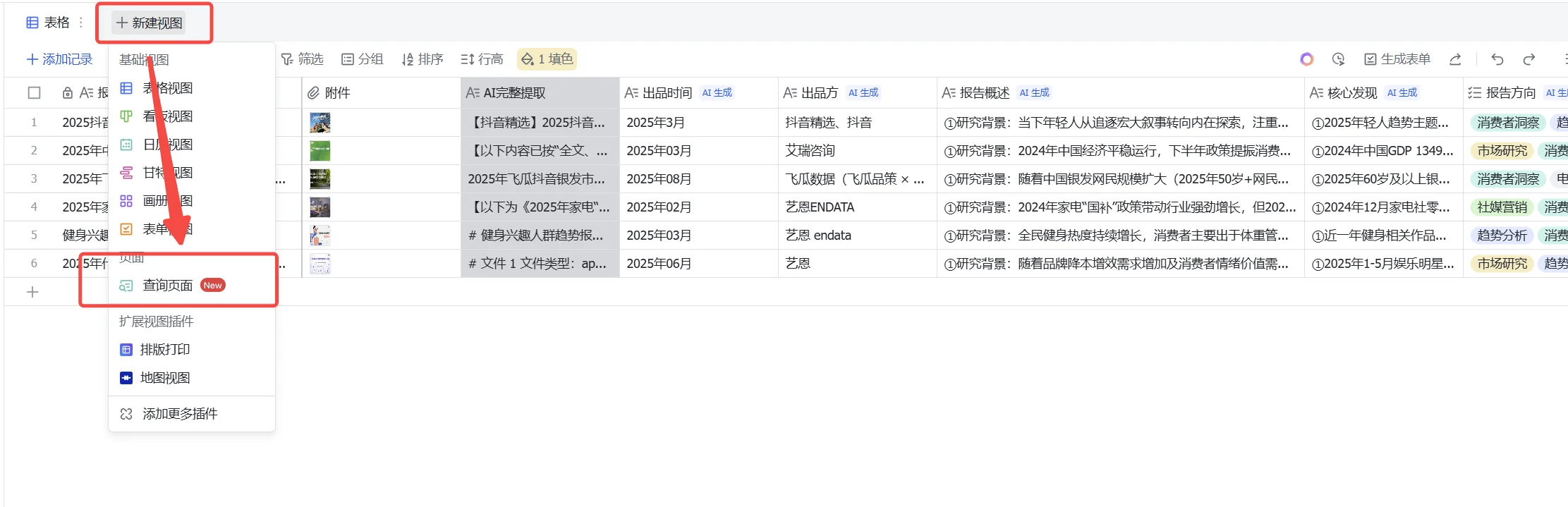
Creating a shareable search page
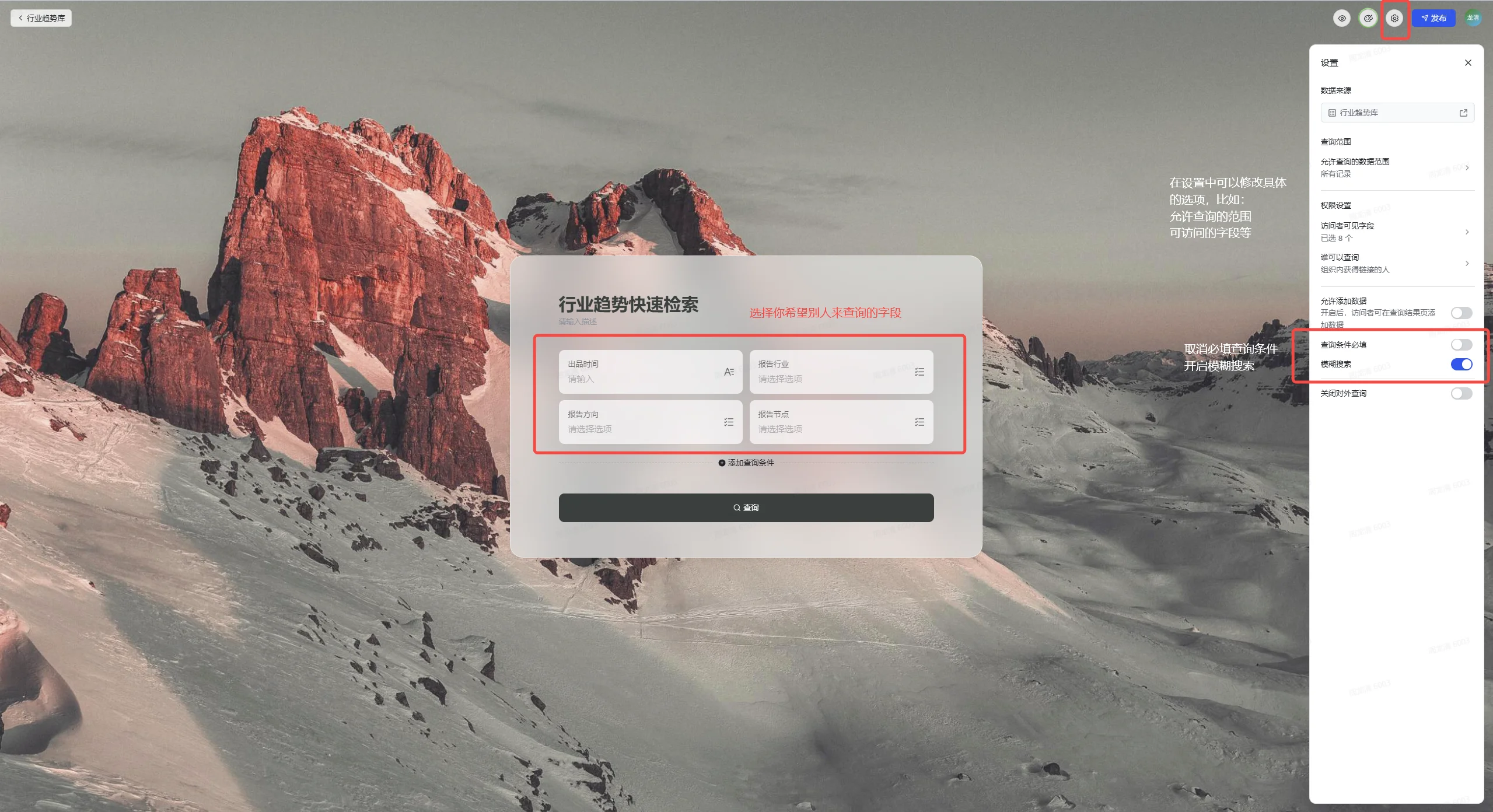
After completing the Bitable, create a search page from the new-view options to produce a shareable report lookup page.
On the search page, you can change the background and set searchable fields and visibility.
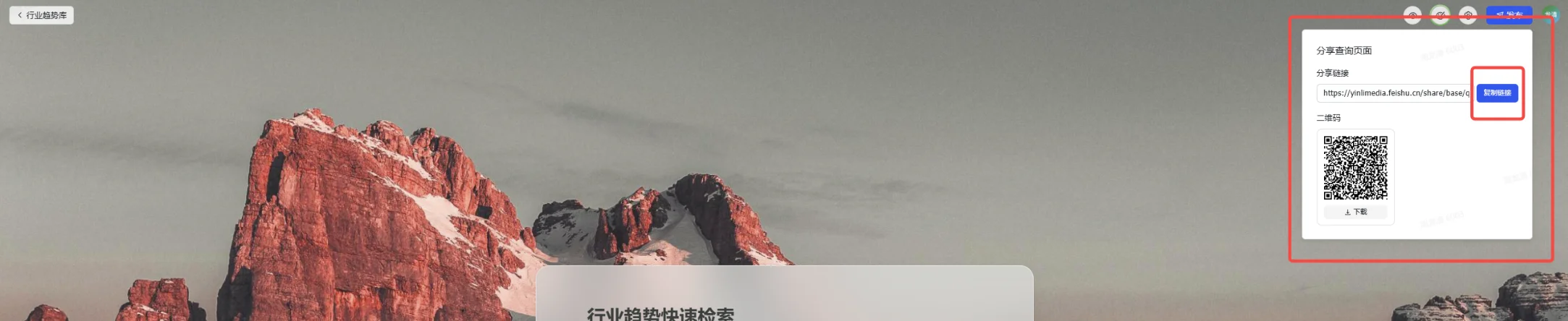
Click Publish at the upper right to share it by link or QR code. I sent the link to WeChat so I can search on my phone when needed.
Automatically notifying people when reports are uploaded
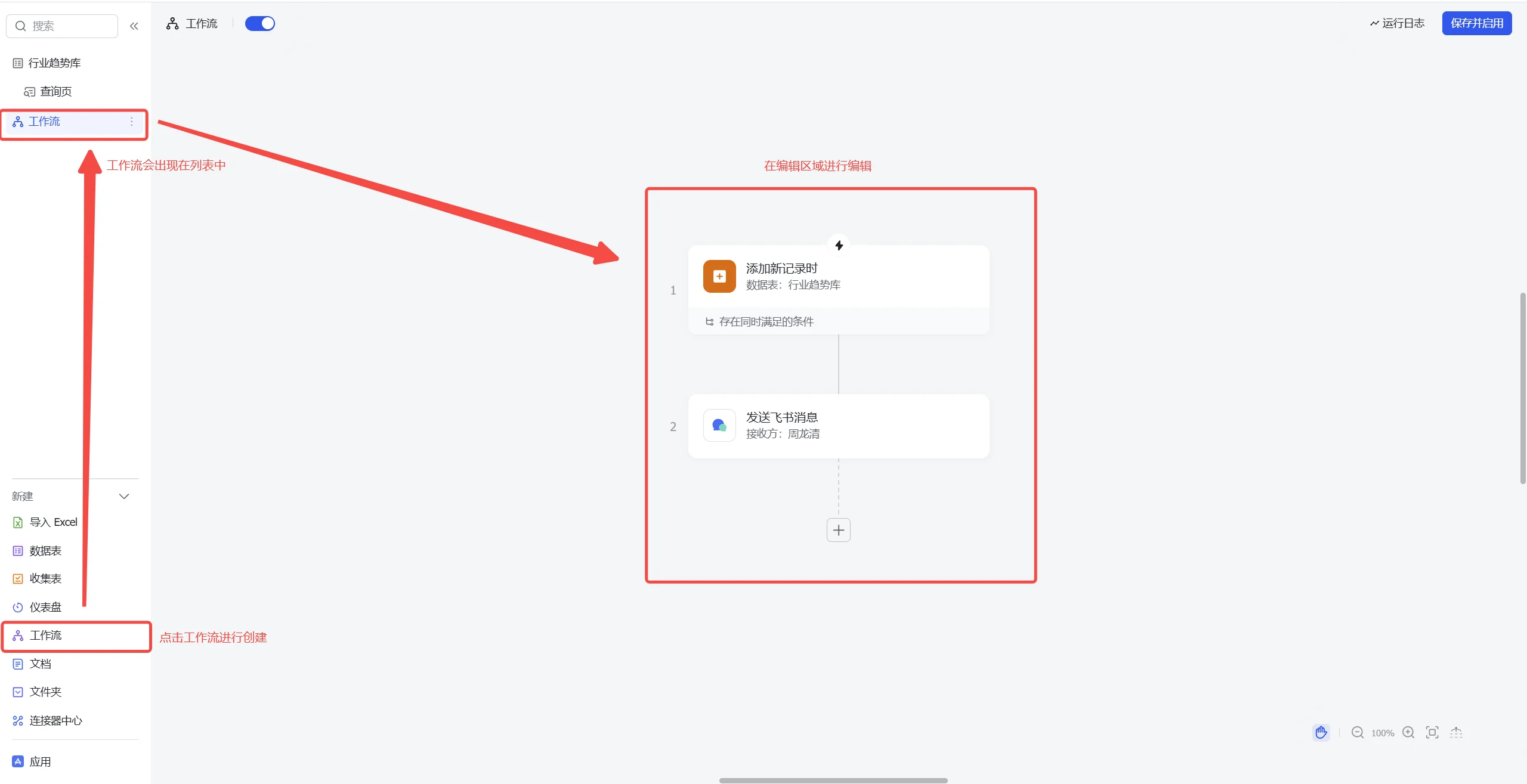
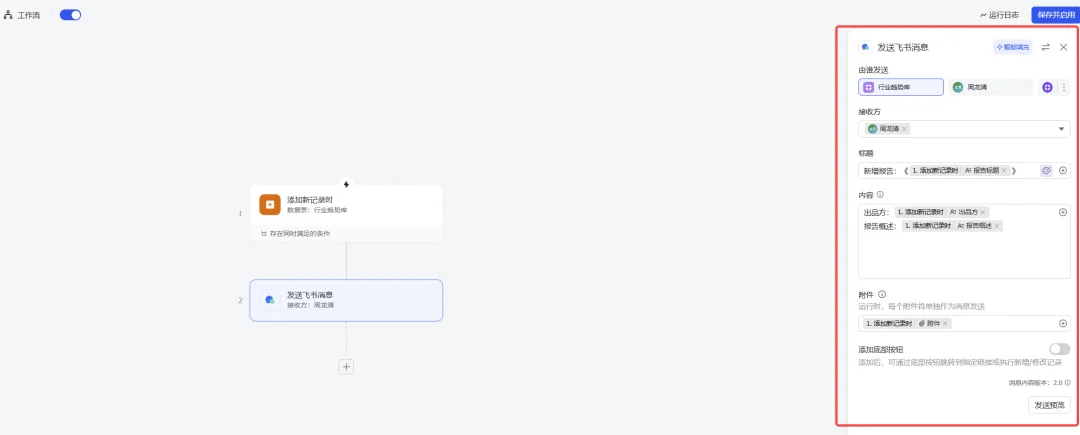
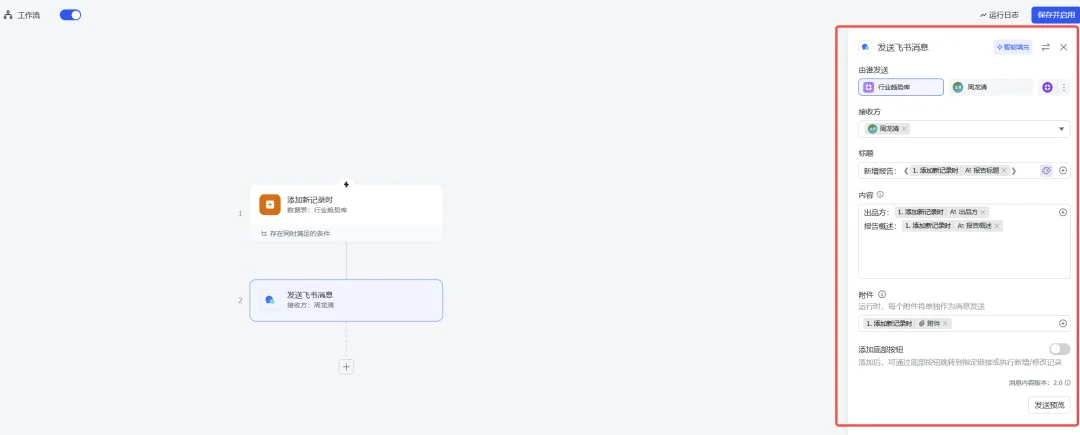
A workflow can send a notification to a person or group when an attachment is added and the reading field is not empty.
Results in use
Uploading a report
- After upload, the AI Full Extraction column starts extracting automatically.

- Once extraction succeeds, the other columns quickly follow.

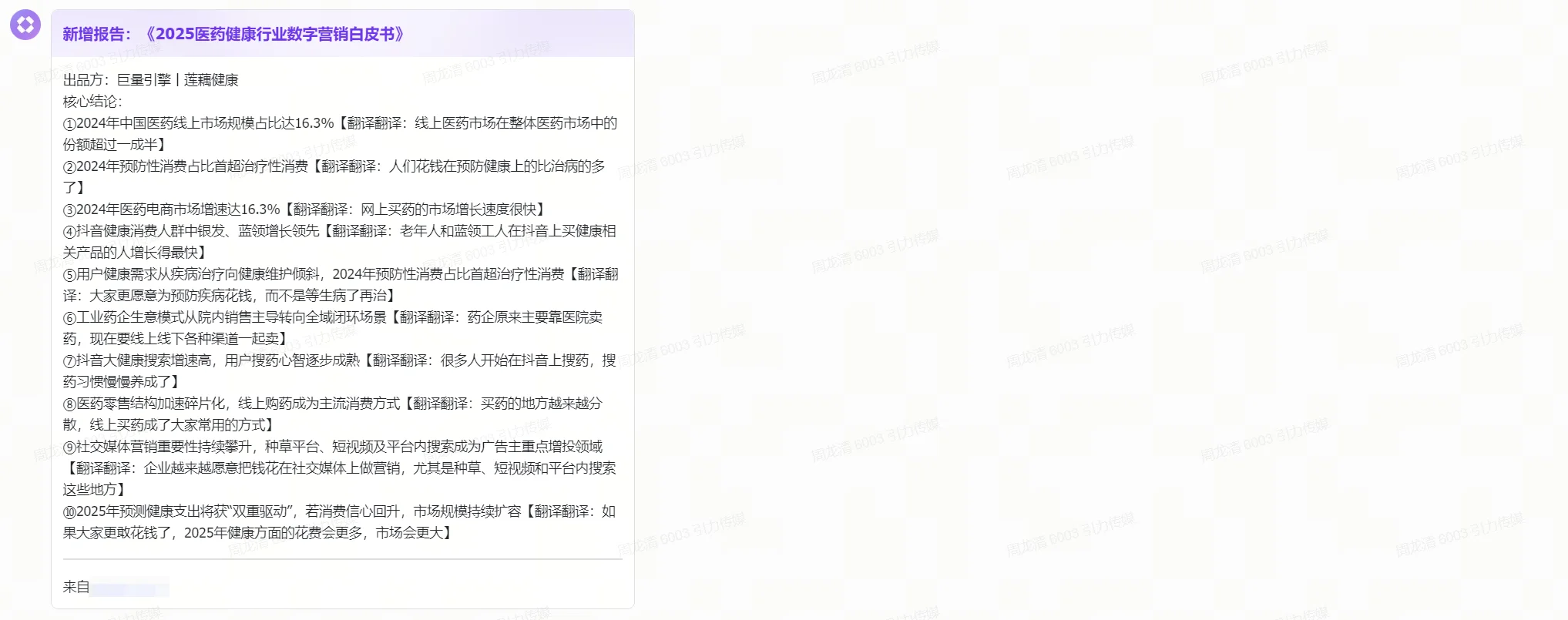
- When the workflow conditions are met, Bitable sends a notification.
Knowledge Q&A results
Standard result
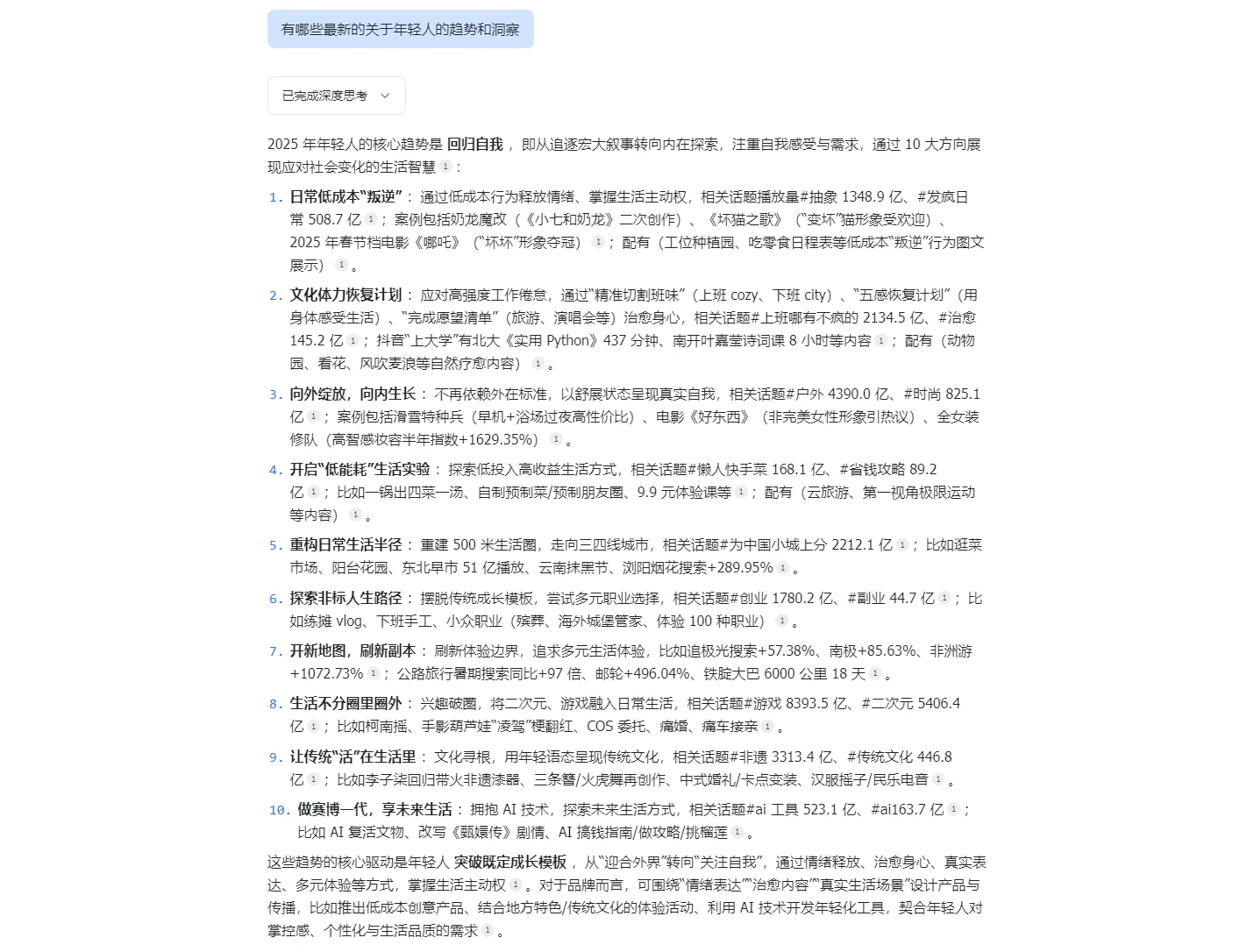
Result with an enhanced prompt